








This is a hands-on tutorial, meaning you'll learn by example.
Let's start by learning how to navigate around the Editor.
See the long bar of rectangles above?
Those are the pages of your story.
1. Click on page 4 above to continue.

StoryJumper Tutorial
Welcome to StoryJumper!
Great! You should now be on page 4 of
this guide.
With the Editor you can add:
- Props (characters and artwork)
- Scenes (backgrounds)
- Photos
- Text



Now, let's add some props.
1. Click on the left side.
2. Click to find more props. You can add props to your
library by clicking on them.
3. Search for specific props using keywords. Try searching for
"boat" or "red".
4. Click after you've added the props you want.
5. Click the rectangle for page 6 to continue.
Props


You can do the following to props:
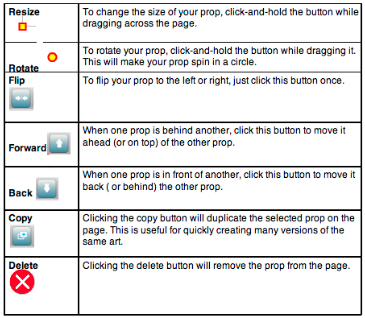
3. When you're finished, click on page 8 to continue.

 CLICK ME!
1. Click this page (orange border appears) and add a couple of
props now.
2. Experiment with the buttons that appear when you click a
prop.
Now, let's add some scenes to your library.
1. Click on the left side.
2. Click to find additional backgrounds for your story.
3. Search for types of scenes. Try searching for "field" or "space".
4. After you've selected some scenes you like, click
Scenes


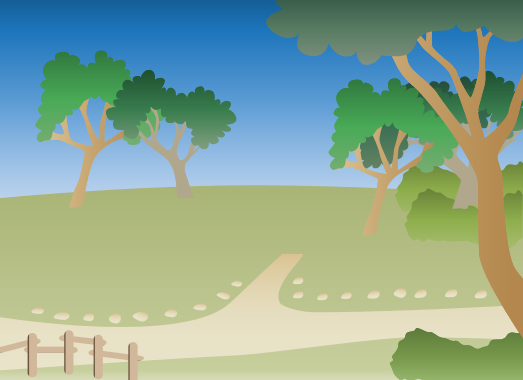
1. Make sure this page is active by clicking on it (orange border appears).
2. Click on different scenes on the left side and they will automatically appear.
(If you want to make the page white again, add the "blank" scene to your scene
library and select it.)
3. When you're finished, click at the bottom of this page to go to page
10.

Now, let's add some photos to your library. You can add photos as
props and/or scenes.
1. Click on the left side
2. Since you haven't uploaded any photos yet, this tab is empty.
(Note: Any photos you upload are personal and private unless you
use them in a story you share later)
3. Click and browse your computer for a photo to upload.
4. After selecting, you'll be able to crop your photo to the size and
shape you like. Once finished, it will appear as a prop or scene
under the photo pane.
Photos


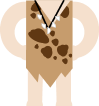
1. Experiment with photos by adding a photo of someone, cropped using
the "oval" shape in the "add prop photo" page.
(Remember that you can move the photo backwards using the "Move
back" button). You can find more costumes in the prop library if you
search for "costumes".



2. When you are finished, go to page 12.
Now, let's add some text to the pages.
1. Click on the left side.
Note: there are 2 types of text:
a) For writing long sections of text with more formatting
options, choose "big text box".
b) For writing short bits of dialog, narration, labels, or titles,
use the labels.
2. Experiment with the examples on the opposite page.
Change the fonts, colors and sizes in the big text box at the
top. Then play with label examples.
3. When you're finished, go to page 14.
Text


This is an example of a big text box. You can
add italics, bold and font color, and adjust
font and font-size easily, too.
 This is a label you might
find in a pirate story!
 I am TALKING!
 Shhh. I am
 thinking...

 Hey, Bob!
1. With the buttons above,
- click "new page" to add another page
- click "copy page" to duplicate a page
- click "delete page" to remove a page
2. Re-arrange the order of pages by dragging-and-
dropping the rectangles.
Pages

"save" your story frequently

1. Click on the first rectangle above to choose the front cover.
2. Click to select which page will
provide the picture for the front cover.
3. Click on the last rectangle above to choose the back cover.
4. Click to select which page will
provide the picture for the back cover.
Add Pictures to Cover Pages

Create Your Own Book
1. After you click below, create your own book from scratch
or use one of the provided templates.
2. Have a great time!



 The END!
- < BEGINNING
- END >
-
DOWNLOAD
-
LIKE(1)
-
COMMENT()
-
SHARE
-
BUY THIS BOOK
(from $3.19+) -
BUY THIS BOOK
(from $3.19+) - DOWNLOAD
- LIKE (1)
- COMMENT ()
- SHARE
- Report
-
BUY
-
LIKE(1)
-
COMMENT()
-
SHARE
- Excessive Violence
- Harassment
- Offensive Pictures
- Spelling & Grammar Errors
- Unfinished
- Other Problem






COMMENTS
Click 'X' to report any negative comments. Thanks!